
Photoshop Brushes are fun, and easy to use. Don't be afraid!
No Photoshop?
No Problem.
We always include .png files in our free brush sets.

1. INSTALL

Depending on your version of photoshop (CS series or elements), and if you are working on a mac or a pc; there are a few ways to install brushes.
To keep it simple- if you can find your brush presets> choose Load, then import the brush set!
For me, I am on a mac and working on Photoshop CS5. I simply drag and drop my .abr brush set into photoshop, or just double click and they are installed.

- When I was using photoshop Elements, this tutorial from Texas Chicks was a gem!
2. CREATE

For the free brushes that we are giving you today, it is best to use them with 4x6 images.
I shot these photos in RAW format, so they are much larger than they need to be. I cropped them to 4x6 at 300dpi.

Once your image is ready, add and select a NEW layer. With the new layer active; choose your brush.
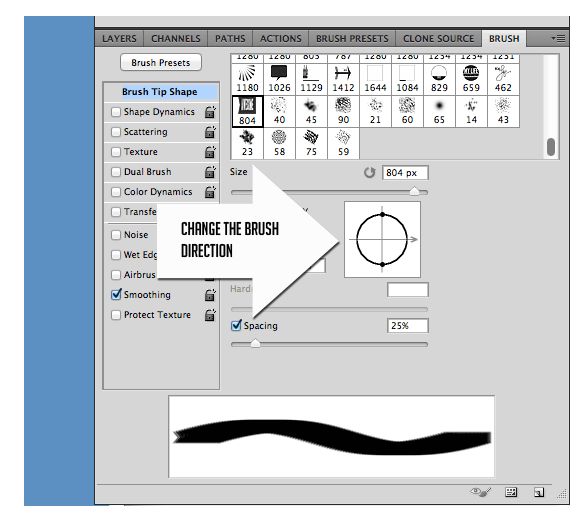
You can change the direction of the brush (great for arrows!). Experiment with the opacity, the texture and the size.
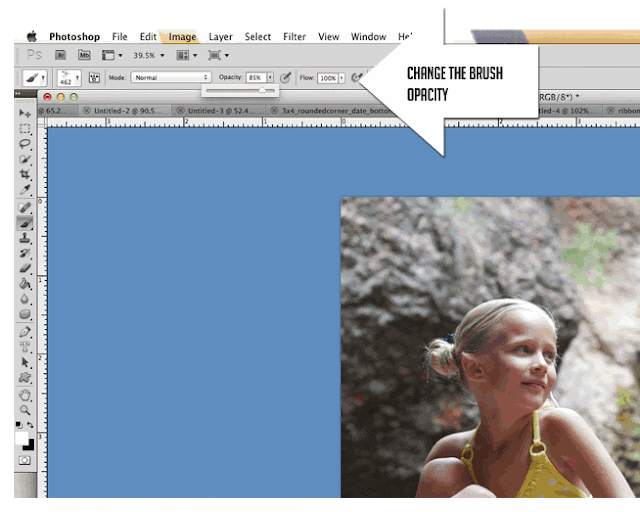
Remember to create a NEW Layer for each new brush.
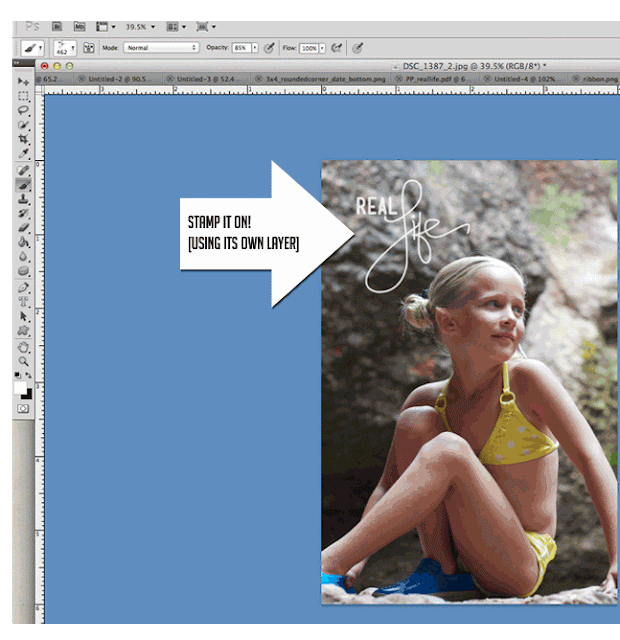
Flatten. Save. Done!


.png stands for "portable network graphics" and was developed mainly to deal with shortcomings of the .gif
.png files have a transparent background which allows you to change the color, opacity & texture without influencing other elements.
MOST photo editing programs will support .png formats. (my memories suite is one)

This free brush download also includes a folder
of .png files and is available at persnicketyprints.com/digifreebies.
Please do not share the download link with others. You are however, welcome to point them here.
- HAVE FUN!
Please do not share the download link with others. You are however, welcome to point them here.
- HAVE FUN!
*Persnickety Prints, inc. is not affiliated with Adobe. Please visit the adobe support page for software help.


