Showing posts with label tutorial. Show all posts

November 24, 2012

How To Create Star Bursts In Your Photos


How To Create Star Bursts In Your Photos 

The lights of Christmas are magical. Make even more magic with a quick technique to turn your photograph’s lights into stars.
Two things help create star bursts, a small aperture and slow shutter speed. If you hand hold your camera your results will be blurry, so grab your tripod or flat firm surface. This technique works best with traditional Christmas lights. LED lights, not so well.
  1. Place your camera on a tripod or stable surface.
  2. Select Aperture Priority Mode (A or AV).
  3. Move your Aperture to f/22, your camera will select the appropriate shutter speed.
  4. Focus on your subject. Manual focus may be necessary in low light situations.
  5. Select your self timer mode to avoid any camera shake.
  6. Press the shutter. Your camera’s shutter will remain open for longer than your typical photo.
  7. Check your results. A star burst will appear around each of the lights in your photo.
No star burst? Close your aperture more (a bigger f/ number).
Play with your aperture and shutter speed combination to see the stars you can create. 

------------------------------------

Ready to take holiday photos you love? Join Katrina for Your Holidays Captured Through The Lens  a two-week online class. Class begins December 4th. 

To Enter: Visit captureyour365.com come back here and leave a comment telling us one thing you'd like to learn to improve your photography skills.
Contest Closes: November 28th, midnight MST. One winner will be chosen at random, contacted & posted here.

>> CONTEST CLOSED <<


WINNER is Shantell! (please email contest@persnicketyprints.com)
Thank you ALL for participating. You can still take this class- and find all kinds of photography tips at captureyour365.com!

Class is delivered through 7 downloadable PDF’s, two videos, and a LIVE webinar (that is also recorded) No need to be anywhere at a specific time during your busy holidays! YOU can make this class fit YOUR schedule.

-Katrina Kennedy

Katrina Kennedy is passionate about documenting the everyday moments of her life.
Visit CaptureYour365 for ideas+inspiration+support for your everyday photography. Get on her

list for free daily photography prompts.


July 16, 2012

How to use a brush in Photoshop


Photoshop Brushes are fun, and easy to use. Don't be afraid!
No Photoshop? 
No Problem.
We always include .png files in our free brush sets.


1. INSTALL


Depending on your version of photoshop (CS series or elements), and if you are working on a mac or a pc; there are a few ways to install brushes.
To keep it simple- if you can find your brush presets> choose Load, then import the brush set!

For me, I am on a mac and working on Photoshop CS5. I simply drag and drop my .abr brush set into photoshop, or just double click and they are installed.
 Need more help? Rather than try to cover all versions, here are some simple online sites that should help-

2. CREATE


For the free brushes that we are giving you today, it is best to use them with 4x6 images.
I shot these photos in RAW format, so they are much larger than they need to be. I cropped them to 4x6 at 300dpi.


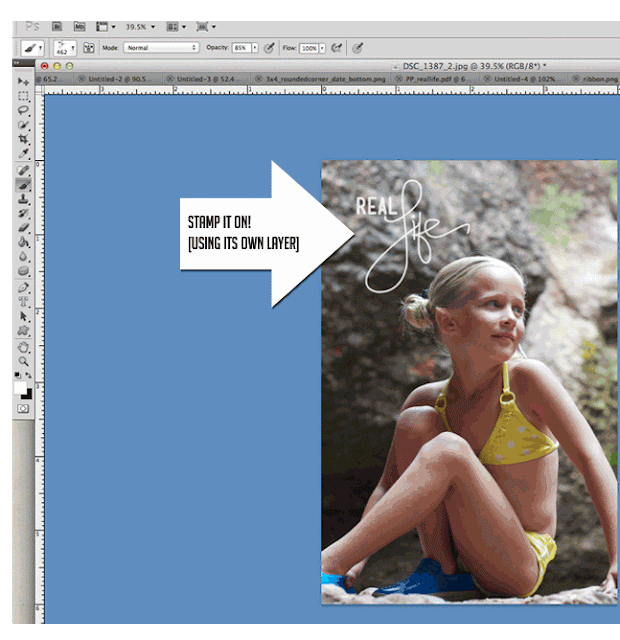
Once your image is ready, add and select a NEW layer. With the new layer active; choose your brush.
 Play with your brush settings, you can always command z to go back- or even delete the layer the brush is on.
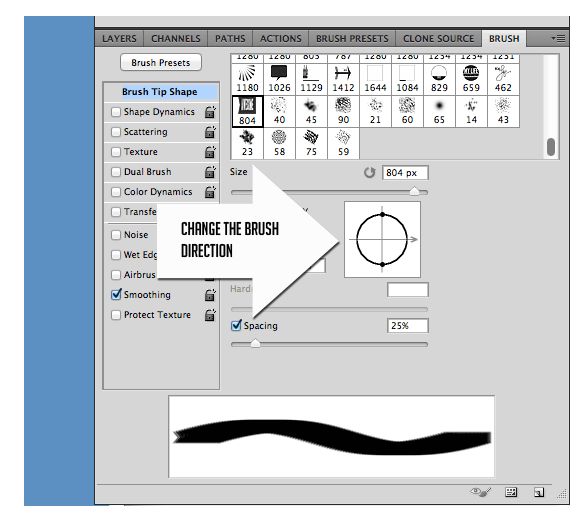
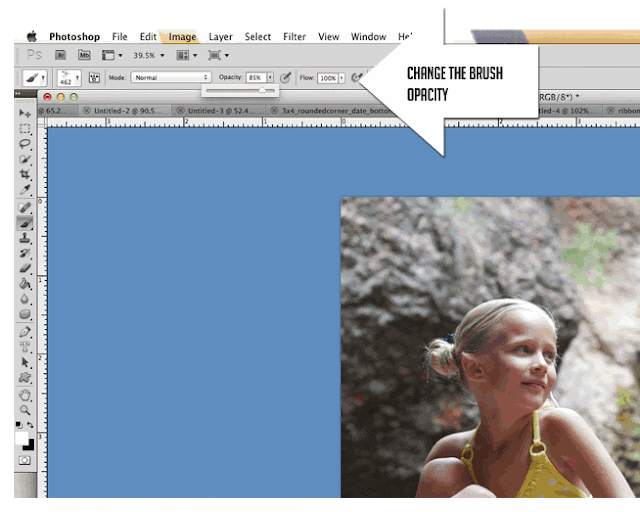
You can change the direction of the brush (great for arrows!). Experiment with the opacity, the texture and the size.

Remember to create a NEW Layer for each new brush.

Flatten. Save. Done!


3. USING .PNG FILES


 .png stands for "portable network graphics" and was developed mainly to deal with shortcomings of the .gif
.png files have a transparent background which allows you to change the color, opacity &  texture without influencing other elements.
MOST photo editing programs will support .png formats. (my memories suite is one)


This free brush download also includes a folder of .png files and is available at persnicketyprints.com/digifreebies.
Please do not share the download link with others. You are however, welcome to point them here.

- HAVE FUN!

 *Persnickety Prints, inc. is not affiliated with Adobe. Please visit the adobe support page for software help.

September 10, 2011

New Features to your online account

You may notice some new changes to your personal Persnickety account. You don't have one?
By all means... it's free, and a great place to store your stuff!

New Members can sign up here.

Already our friend? Login here.

As you know, your online Persnickety account can do many things. You can edit your photo's, scrapbook them, share them, and even run a slideshow on your iPad or computer.

The hardest part about your account? Uploading those darn pic's! I admit, it isn't fun importing, exporting, uploading, downloading. In fact, I absolutely dread it.

We are trying to keep you happy, and more importantly, save you time. (no more excuses for laundry piles and an overgrown lawn!)

As we have almost completed integration for an even faster uploading tool, we have added some great new features that you should really play with!

First: That darn Picasa.
I love Picasa, I do... but it is a challenge getting it the first time. We have these video tutorials that can help. Written tutorials can be found here at Memories on Cloverlane
Picasa is a great way to whip up scrapbook layouts fast.

Once your image is saved in your Picasa Web Album, you can NOW just login to your Persnickety Prints account, and just pull them in!


Easy AND Fast!
This works for any images you have on your Phone, Facebook, Flickr, and Photobucket!

You likey??

Great... once your images are all safe and sound in your account... Why not click a button and show them off?


 The new slideshows include Wall 3D, Thumbnail Slide, Stack Album, Simple Scale, Pan and Zoom, and Simple Thumbnail views. 

Let us know which one is your fav!


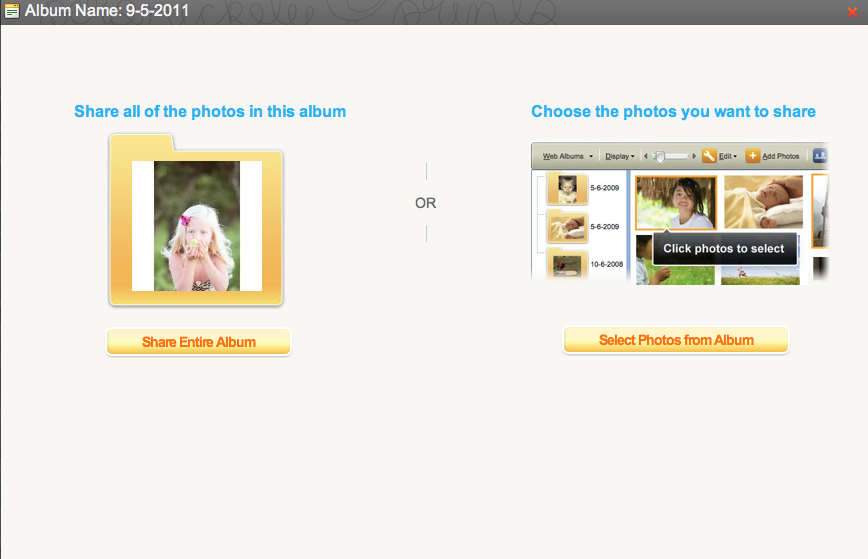
*we have a question- "can you share an online album?" - Why Yes! You sure can!
Just Click the SHARE button up top! 


December 30, 2010

Creating a Scrapbook Page with Google Picasa - Step 1


Picasa is a free photo editing and organization software from Google.
Once installed, Picasa finds and organizes all of your photos on your hard drive
(disclaimer- when creating with Picasa, make sure you are NOT using photos from your thumbnail folder. They will look great on screen, but not in print)
I work in PS CS5, but I use Picasa when I need a quick collage.
It's so fast and easy- anybody can do this!


1. First of all, let's install Picasa-
Download the software here.

TWO THINGS TO KNOW
The Picasa software provides a simple way to view, edit, and organize the photos on your computer. As you get started, there are two things you should always remember:
  • Picasa does not store the photos on your computer.
    When you open Picasa, it simply looks at the folders on your computer and displays the photos it finds. It displays the file types that you tell it to find, in the folders that you tell it to search.
  • Your original photos are always preserved.
    When using editing tools in Picasa, your original files are never touched. The photo edits you make are only viewable in Picasa until you decide to save your changes. Even then, Picasa creates a new version of the photo with your edits applied, leaving the original file totally preserved.


Digital Scrapbook Pages created from Cinzia Loosemore's Holiday Cheer Papers & Elements kit from Oscraps.com


MORE PICASA TUTORIALS (written)
 by Sarah at Clover Lane


 > Continue onto steps 2 &3!

Step TWO: creating
Step THREE: adding paper and ordering prints

*Persnickety Prints is not affiliated with Google or Picasa. Picasa support can be found here.