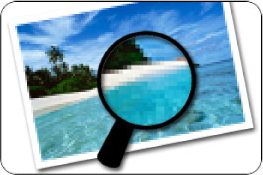
Image Size
Image Size is the size of your original digital photo file, measured in pixels and DPI (Dots Per Inch). What is a pixel? A pixel is a small square dot. DPI refers to the number of dots (pixels) per inch. Why is this important? Well, if an image is too small, you might not be able to order a large size print or other photo product. A general rule of thumb for image size versus print size is: the image size should be at least the size of the print you want multiplied by 300, at 300 DPI. For example, if you want to order a 4x6 print, the image size should be 1200 pixels (4 x 300) by 1800 pixels (6 x 300) at 300 DPI. If the image size was half of that (600 by 900), then the 4x6 print would likely come out distorted or pixilated if you were to order a print.
Camera Settings
Decide in advance what is more important: image quality or room on your memory card. You can set your camera to take photos that are larger or smaller in size. If you know you will only be printing 4x6 photos, then you can reduce the image quality, which allows you to store more photos on your memory card. If you will be printing enlargements or other photo products like photo books, then keep the setting on "high" for higher quality images. The image sizes will be larger and you will not be able to store as many on your memory card at one time. Also, set the file type as "jpeg" if your camera allows you to control that detail. You might have a "tiff" option, but it is not necessary to save the photos as "tiff" files, and it will only take up more room on your memory card.

If you have a point and shoot camera, open your main menu, and find the setting for "image quality" (or something similar). Usually, the options are "low," "medium," and "high." Choose "high" for higher quality (larger) photos. If you have an SLR camera, you probably have additional options. Just stick to high quality jpeg images, unless you know you will be doing extensive image editing and post-production. In that case, you might want to shoot RAW files.
Resolution
The resolution of your photo is directly impacted by the image size. The more pixels your photos have, the higher their resolution is.
When you upload photos to your online account, you are given three upload options: "Regular," "Fast," and "Fastest." When you choose "Fast" or "Fastest," the photos are compressed, so the resolution will be less than the original photo file. So, if you are just uploading to order 4x6 prints, "Fastest" will be fine. But, if you wish to order enlargements, photo books, calendars, and other photo products, choose the "Regular" speed, which uploads the photos at their original resolution.

Once the photos are uploaded, you will notice three bars for each photo in your account. If all three bars are green, that means that the resolution of the photo that is in the account is sufficient enough to order just about anything on the site. If the bars are all red, you have uploaded a low resolution photo. Try to find the original photo file and check the size. If the size is sufficient enough to order prints (based on the rule we mentioned above about multiplying the desired print size by 300 and comparing to the actual image size), re-upload the photo at "Regular" upload speed. Photos with two or three red bars will generate poor quality prints, especially if you are trying to order anything larger than 4x6 prints.
We also will double check the resolution on our end. If we catch a low res file when printing, we always stop and notify you. We want you to be happy with your prints.
Additional Tips
Now that you understand image size and resolution a bit more, and understand why they are important when working in your online photo account, here are a few more extra tips about image size and resolution:
- Most computer screens display photos at 72 DPI. That means the printed photo will look different than how it appears on your computer screen.
- If you crop a photo too much (zoom in too much), it will always look pixilated and distorted, no matter how large the image size is.
- Once you take the photo, you cannot increase the size or resolution by increasing the number of pixels in any photo editing program. If you wish to increase the resolution or file size, you must do so by adjusting your camera settings before you take any more photos.