Showing posts with label photoshop tutorial. Show all posts

July 28, 2012

How to use a .png in Photoshop


 PNG stands for Portable Network Graphic. You don't really need to know this, but non-the-less, you will sound really intelligent when you tell people.


 Here's what you want to know about the .png format:
  1. The transparent background has no limits!
  2. PNG images have a loss-less compression. 
  3. The PNG format also supports 24-bit color like the JPEG format. A PNG image may include over 16 million colors. Keep in mind a GIF is also transparent, however, mostly used for animated graphics. GIF images only include a maximum of 256 colors. 
Very basic steps to using .png files in Photoshop:
Open Photoshop.
Open the image, or layout you would like to use.
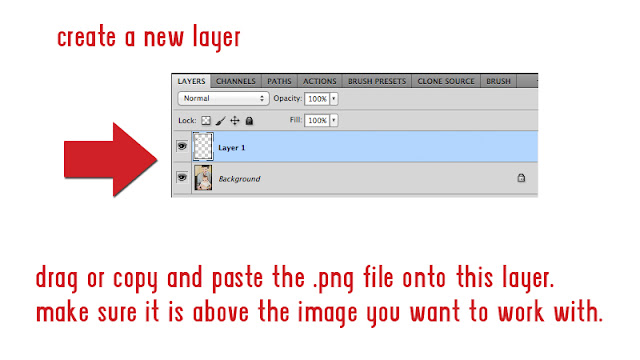
Photoshop is all about layers, make sure your layers panel is open.
 Layer > New > Layer
 

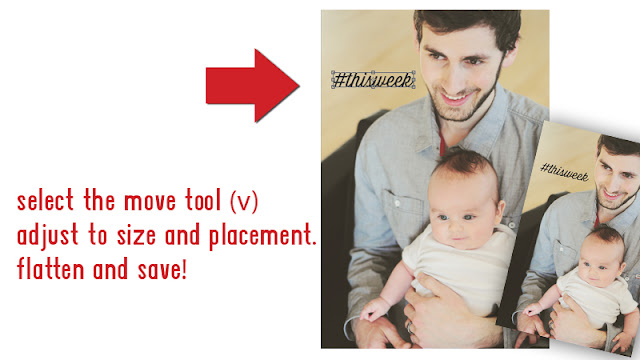
 Here we are adding a #thisweek hashtag/wordart to the top of Tyler's photo. Grab a free downloadable hashtag set here.
 This photo card is a.png too! Add your image, adjust, and walla! Done!

As always, let us know if you have any questions!


April 9, 2012

3 Easy Steps to Sharpen and Pop in Photoshop

An image is what you make of it.
There are so many variables that go into the perfect shot. 
Most of the time we will need to edit something. In Photoshop, there is always more than one way to change or enhance the image. Find the best way for you & soon, you should be editing with your eyes closed! (no, don't do that)


Take the above photo for example. There is great color here; her bow, the pear.... let's make it pop... ready?


1) Create a New Layer
(command J)


2) Choose Filter > Other > High Pass
(I keep it at a 10 radius or smaller)


3) Blending Mode
With the second layer active (selected), choose the blending mode drop down above. Depending on the photo, I choose Overlay or Soft Light for a slight sharpening effect. Change the opacity, or even add a clipping mask to sharpen just part of the image.

Ta-Da! Flatten Image & Save. That's it!

October 14, 2011

Photo Mask Freebie

Photo Masks can be used for so many things, layouts, holiday cards, calendars, you name it! Photo Masks are .png files, with a transparent background.


Here is how ya do it ---->


1.  Open a mask in any Photoshop program.
Drag the image you want to clip ontop on the layer above the mask layer. You can drag it, or even copy and paste inside of photoshop.


2.  Clip It! 
With photoshop, there are many ways to create one effect.
One standard way to clip an image is by first, highlighting the top layer, the go up to Layer > create clipping mask. done.
I would recommend learning some hot keys to help you navigate through photoshop with ease. Before you know it, your fingers are doing all the talking!


3.  Merge the layers. Don't flatten, we want to keep the background transparent.


Done! Drag (or copy & paste) the clipped mask onto papers, cards, calendars, love notes...


Grab this set of Free Photo Masks HERE.... and most important, have fun!


September 25, 2011

Getting that "Sketch" Look in Photoshop


I have been seeing this new "sketch" technique around digi-land and tried to accomplish it myself.
No luck with my current Photoshop filters.

Then, I saw Kami's layout that we printed for her on our metallic photographic paper at the Scrapbook USA Expo:

Kami's layouts just amaze me!

This Sketch Technique is awesome, and there are so many ways to use it!
Here Kami takes a photo of a brick wall, creates a sketch, and extracts it onto her background paper:


Kami is the genius behind the store, ScrapOrchard, and is well known as designer Ziggle Scraps.

She assured me that she would be working up a tutorial on how she acheived this layout.
And that she did: Click here for Kami's Tutorial using the Plugin Akvis.

I just got around to playing with this plugin myself:


Super Easy-
Thanks Kami!

August 31, 2011

12x24 Digital Layout

"Today you are YOU, that is truer than true. There is no one alive who is YOUer than YOU." -Dr. Suess
 There is not a right or wrong way to documenting life's magical moments.

For me, I enjoy working on layouts that are inspiring at the moment. I don't scrapbook in chronological order, and I have always used binders and page protectors to store my layouts so that I can have the freedom of adding or removing.
I am not too picky about how my layouts flow- it is all about the "memory" right? But, sometimes it is nice to open up my album and have 2 layouts that "match".
When I want my 2 page spread to really flow, I create a 12x24 layout.
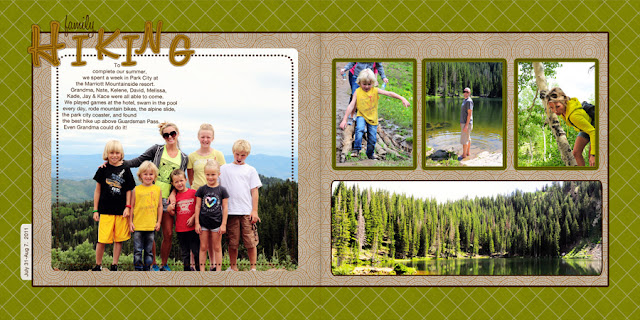


Here at Persnickety Prints, we can most definitely print a 12x24 layout.
However, if your intentions are 2- 12x12 layouts, you will want to "cut" the layout first in photoshop and order them separately.
  • First of all, a 12x24 full resolution, 300dpi file is ginormously (is that a word?) huge. You are looking at about 70-80 MB of precious hard drive space. Cut that in half, and each file will be 2-6 MB in size. Think of it as "condensing" your hard drive space.
  • A 12x24 layout will need to be shipped in a rolled tube, separately from the rest of your order. For this reason, our 12x24 print is priced at $9.99. (we are trying to "discourage" this:)
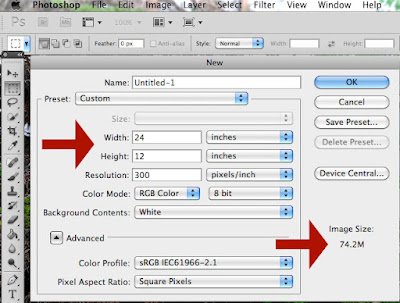


Unless you really truly need a 12x24 panoramic print, you can see that cutting it into 2 will benefit you all around.

Here is a step-by-step tutorial on how to do this in any photoshop program:


SPLITTING A 12x24 LAYOUT in Photoshop:


1. Here I have my super huge 12x24 layout that I whipped together highlighting a great hike we did in Park City, Utah.


2. Activate your crop tool (on the left). At top that you are now able to specify your crop width and height. (12x12)


3. I have cropped the left side of my 12x24" layout. Click enter to accept- or the check mark at top.


4. Ta-da! Now SAVE AS (ie, hiking_left.jpg)

5. After you have saved the 12x12 layout, you need to go "back" to the full 12x24.


Command Z should be your best friend, or will be soon. 
Shift-Command-Z to go back more than once. (I am working in CS5)

6. Once you are back to your 12x24, do the same cropping again as in steps 2 & 3, but now on the right.


  7. IMPORTANT STEP. We have already saved the left side. If I click "Save" now on the right, without changing the filename, it will override the original file. To avoid this choose "SAVE AS" and make sure you name the right side something else. (ie. hiking_right.jpg)

That's it! Easy, right?

We have also created a free Photoshop Action that will do this for you!

You are now ready to upload your 2 12x12 layouts!

(*note: When printing, we watch your layouts closely. We noticed your 2 page layouts and make sure they are aligned, and spot on. We are Persnickety:)